Retrieving access and refresh tokens
Rulrr OAuth API enables third-party client applications to get permission from the advertiser account to manage specific types of resources in that account.
This is the process where client applications obtain an integration code that is redeemed to get an access token and refresh token. These tokens allow managing resources for a Rulrr account and are used when calling the Rulrr APIs.
STEP 1 | Create the Integration Code
POST /v1/auth/integration?client_id=<clientId>&client_secret=<clientSecret>Creates the integration code. Requires a client_id to identify the type of the POS.
Parameters
client_id— an ID provided by Rulrr for every vendor. It identifies the POS that tries to integrate.client_secret— a secret token provided by Rulrr to every vendor. Allows to identify if the client is correct.
Response JSON
{
  "success": true,
  "integrationToken": <token>
}
Or 400 if the client id is incorrect or 403 if the client secret is incorrect.
STEP 2 | Checking the Integration Status
GET /v1/auth/integration?client_id=<client_id>&client_secret=<client_secret>&integration_token=<integrationToken>Returns the status of the integration.
Parameters
integration_token— a token generated in the endpoint POST /v1/auth/integration.client_secret— the POS should also send this secret in order to verify that the request is valid and that the integration token wasn't exposed anywhere.client_id— to identify the POS.
Response JSON
{
  "success": true,
  "status": 'pending' | 'finished' | 'cancelled'
}
or 403 if incorrect integration token or client secret.
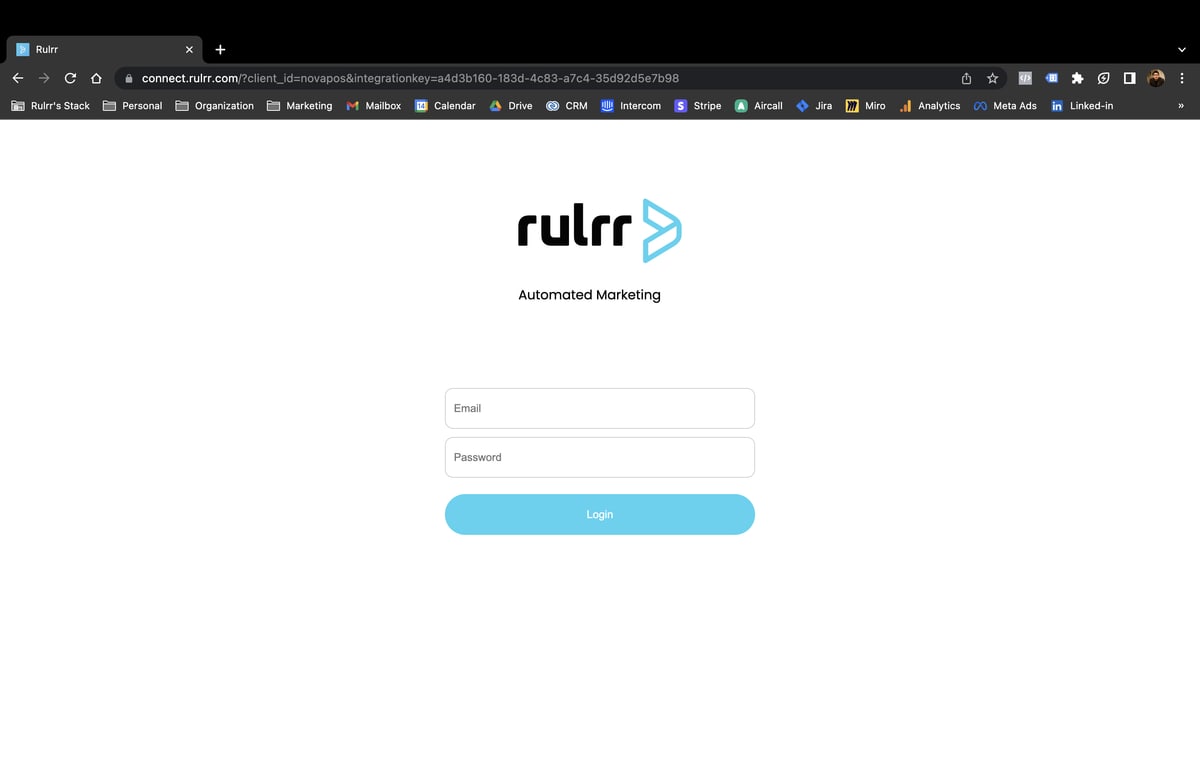
STEP 3 | Displaying the Rulrr-Connect IFrame
POS displays an IFrame with the website connect.rulrr.com.
The URL must contain:
- integration_token passed as a parameter
- client_id passed as a parameter
The user integrates there and when completed, the Integration Status should change to 'finished'.
STEP 4 | Obtaining the Access and Refresh Token
use only when integration status is finished in order to fetch access and refresh tokens.
GET /v1/auth/integration/token?client_id=<client_id>&client_secret=<client_secret>&integration_token=<integrationToken>One-time return of the access and refresh tokens generated at the end of the integration process.
Parameters
integration_token— a token generated in the endpoint POST /v1/auth/integration.client_secret— the POS should also send this secret in order to verify that the request is valid and that the integration token wasn't exposed anywhere.client_id— to identify the POS.
Response JSON
{
  "success": true,
  "accessToken": <accessToken>,
  "refreshToken": <refreshToken>,
  "expiration": <expirationDate>,
  "ereceipt": true,
}
or 403 if the integration token is incorrect or 410 if the token was already retrieved with these keys.
you'll be able to execute the following endpoints, Update store profile, Send customers list and Send single order.
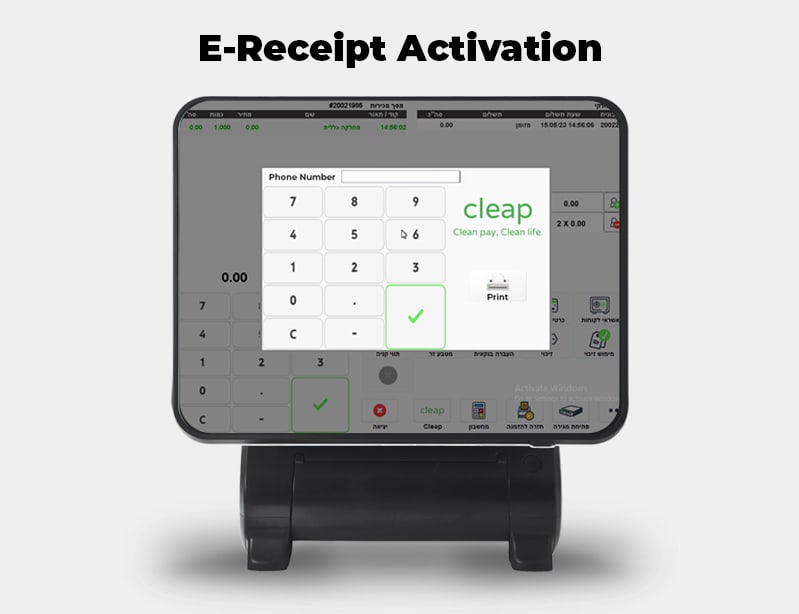
STEP 5 | Prompting a Numpad with every order
Follow only when the e-receipt parameter is set to true.
POS displays a numpad for the user to allow the user to send e-receipts by text message.
In case the user decides to send an e-receipt and inputs a valid phone number, dismiss the printed receipt.